App Screenshots

Multi-factor authentication and account security manager
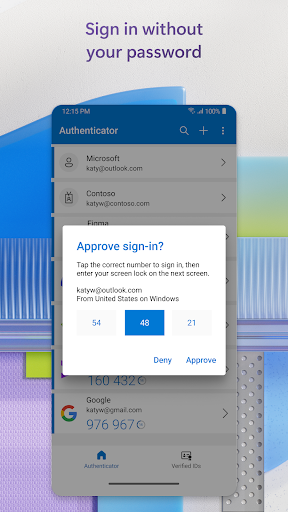
Signing in to personal, work, or third-party accounts often requires more security than a standard password can provide. Microsoft Authenticator works as a dedicated security app that helps verify identity through phone notifications, time-based passcodes, and passwordless logins. Instead of typing credentials every time, users can approve sign-in prompts sent directly to their mobile device or rely on biometrics like a fingerprint, Face ID, or a personal PIN to log into supported accounts quickly and securely.
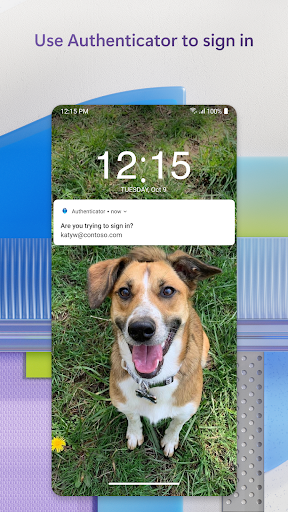
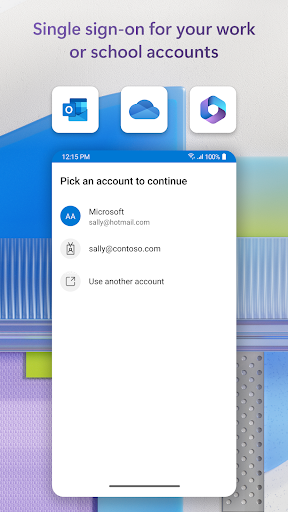
When accessing personal, work, or school accounts, the app displays push notifications on the user’s phone to confirm login attempts. A user trying to sign in on a laptop, tablet, or web browser receives a prompt on their device to either approve or deny access. If the sign-in activity looks legitimate, approving the prompt completes the login. This additional confirmation step ensures that even if a password is leaked or reused across multiple websites, an unauthorized user cannot gain access without physical approval from the registered phone.
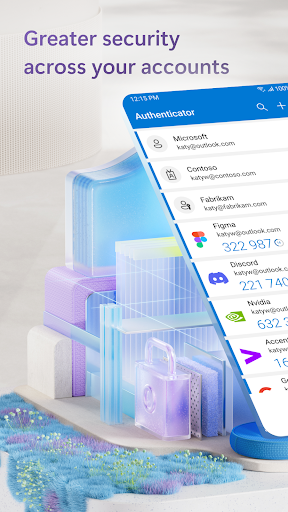
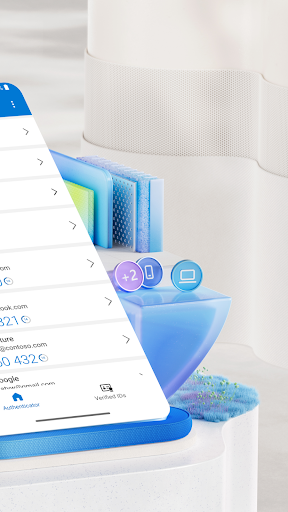
For services requiring two-factor authentication, the app can function as a code generator for both Microsoft services and third-party platforms like GitHub, Facebook, and Dropbox. It generates six-digit security codes that automatically refresh every 30 seconds. Because these codes operate on a time-based algorithm (TOTP), they generate locally on the device without requiring an active mobile data or Wi-Fi connection, making them useful in low-reception areas or while traveling.
Adding new profiles relies on tapping the plus button within the interface to link personal, work, school, or external accounts. Connecting a service usually involves scanning a QR code provided by the website’s security settings, though manual setup keys are supported if a device camera is unavailable. For compatible Microsoft accounts, users can bypass standard password entry altogether by setting up passwordless sign-ins, relying entirely on biometrics or a device PIN to authenticate access.
To maintain security, the primary requirement for using these features is that the phone remains charged, accessible, and protected by a built-in screen lock.
Your comment was submitted and is awaiting moderation.
Your comment was published.