Why Huawei phones have no Google apps
Since 2019, US trade restrictions have stopped Google from licensing its apps and services to Huawei. Every Huawei phone launched after that, from the Mate 30 and P40 onwards, ships without Google Mobile Services: no Play Store, no Gmail, no YouTube app, and no Google sign-in for other apps. Huawei replaced them with its own AppGallery and Huawei Mobile Services.
Older models such as the P30 and Mate 20 kept their Google apps. Honor phones made after Honor split from Huawei in 2021 also come with Google again. If your phone is one of the newer Huawei models, the options below are what you have.
Your options at a glance
| Option | How it works | Good for | Limits |
|---|---|---|---|
| GBox | Runs Google services and apps inside a separate virtual space | Most users. Easiest to set up | Late notifications, no Google Wallet, more battery use |
| MicroG | Open-source replacement for parts of Google services | Experienced users and custom ROMs | Harder to set up on Huawei; some apps still fail |
| Google installer apps | Install the real Google framework into the system | Older phones on Android 7 to 9 | Do not work on recent Huawei software |
| AppGallery and the web | Use Huawei’s store and Google services in the browser | Gmail, YouTube and Maps without extra apps | No Play Store apps that need Google sign-in |
How GBox works
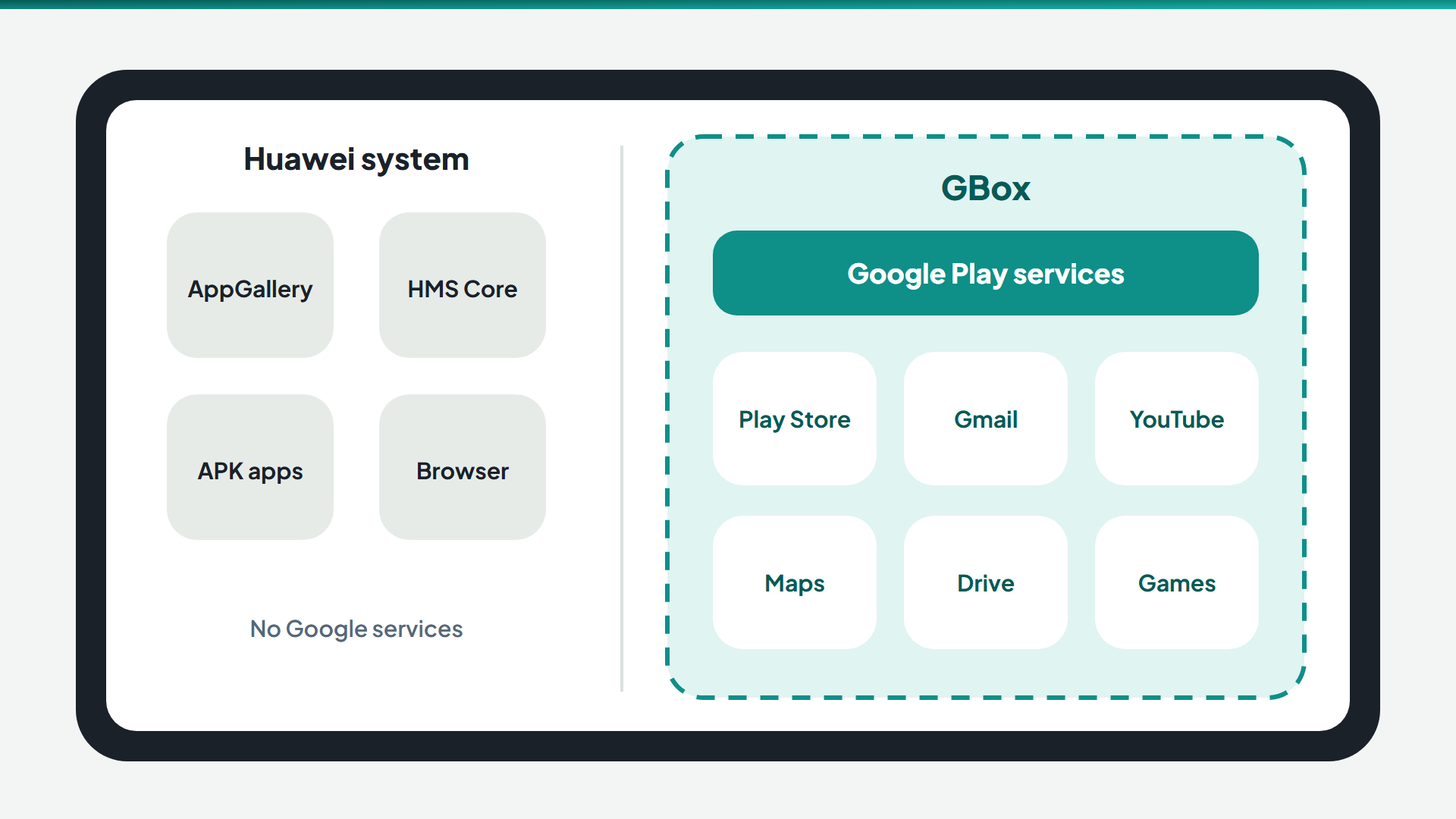
GBox is a container app. Instead of changing the system, it creates a separate space with its own copy of Google Play services. Apps you install from the Play Store inside GBox find Google services there and work as if the phone had them. No root and no system changes are needed, so removing GBox removes everything it added.
GBoxTools · 113.09 MB · 1.8.2.2 · APK Download
How to set up GBox
- Install GBoxDownload GBox from its page on APKCombo and install it. If the phone blocks the file, allow installs from your browser or use APKCombo Installer.
- Let it prepare Google servicesOpen GBox and wait while it downloads and sets up its Google components. Keep the phone on Wi-Fi; this can take a few minutes.
- Sign in to GoogleOpen the Play Store inside GBox and sign in. We recommend a secondary Google account at first, with two-step verification turned on (see the warning below).
- Install your appsInstall Gmail, YouTube, Maps or any other app from the Play Store inside GBox. Open them from GBox or from the shortcuts it adds to the home screen.
- Allow GBox to run in the backgroundSettings › Battery › App launch › GBox: switch off automatic management and allow auto-launch, secondary launch and run in background. Without this, notifications arrive late or not at all.
What does not work well
- Notifications can be delayed, because they pass through GBox instead of the system.
- Google Wallet and contactless payment do not work.
- Some banking and streaming apps detect the virtual space and refuse to run, or limit video quality.
- Battery and storage: GBox keeps its own copy of Google services running and takes several hundred megabytes once apps are installed.
- HarmonyOS NEXT: on Huawei’s newest system, which no longer runs Android apps natively, Android apps and GBox need a compatibility container and support varies. Check before you rely on it.
Google installer apps: only for older phones
Before 2019, apps such as Go Google Installer and Google Installer could install the real Google framework on phones sold without it, mostly Chinese-market Huawei, Xiaomi and other brands on Android 7 to 9. On current Huawei software they fail or install services that Google refuses to certify. Use them only on an older phone that matches their supported versions.
Go Google InstallerTools · 11.21 MB · 4.8.7 · APK Download Google InstallerTools · 0.18 MB · 5.0 · APK Download

Common problems
| Problem | Fix |
|---|---|
| “Device is not certified” message | Use the Play Store inside GBox rather than one installed on the system. System-level Google installs on new Huawei software are blocked by Google |
| No notifications from Gmail or WhatsApp | Allow GBox to run in the background and auto-launch in the battery settings, then reopen GBox |
| Cannot sign in to Google | Update GBox, check the date and time on the phone, and try Wi-Fi instead of mobile data |
| An app crashes inside GBox | Update the app from the Play Store inside GBox, or change the simulated device model in GBox’s settings |
| Maps shows the wrong location | Give GBox the location permission in the phone’s app settings |
For apps that do not need Google services, installing the APK directly is simpler and lighter. Our guide to XAPK, APKS and OBB files covers apps that come as bundles, and this guide explains how to keep them updated.
New Huawei phones cannot get Google services in the system, but GBox runs Google apps in a separate space without root. Install it, allow it to run in the background, use a secondary Google account first, and keep everything that does not need Google outside GBox. Google installer apps belong to older phones only.
Frequently asked questions
Can I install the Google Play Store on a Huawei phone?
Not in the system on Huawei phones from 2019 onwards. GBox gives you a Play Store that runs inside its own space, and apps installed there work with Google sign-in.
Is GBox safe?
GBox is a widely used container app, but your Google login runs inside it. Use two-step verification, start with a secondary account and avoid using it for banking or payments.
Does GBox need root?
No. GBox creates a virtual space and does not change the system. Uninstalling it removes the Google apps and services it added.
Why are my notifications late with GBox?
Huawei’s battery management stops apps in the background. Allow GBox to auto-launch and run in the background in Settings › Battery › App launch.
Do Honor phones need GBox?
Honor phones made after 2021 come with Google apps, so they do not need it. Older Honor models that shipped without Google behave like Huawei phones.
Reviews and ratings
Your comment was submitted and is awaiting moderation.
Your comment was published.