Is there a Windows 11 APK?
No. Windows is an operating system, not an app, and Microsoft does not make a version that installs on Android. Files sold as “Windows 11 APK”, “Windows 10 APK” or “Windows 7 APK” are one of three things, and only the last one runs actual Windows software.
| What the file really is | What it does | Runs .exe programs? |
|---|---|---|
| A launcher or theme | Makes the Android home screen look like Windows, with a taskbar and a start menu | No |
| A “Windows simulator” game | Imitates the Windows look for fun or nostalgia | No |
| A compatibility layer such as Winlator | Runs Windows programs and games directly on Android | Yes |
If what you want is the Windows look, a launcher is enough. If you want to run Windows programs or PC games, read on.
Desktop Pro: Windows 11 & Windows 10 Launcher proPersonalization · 11.09 MB · 1.3 · APK Download
What Winlator is
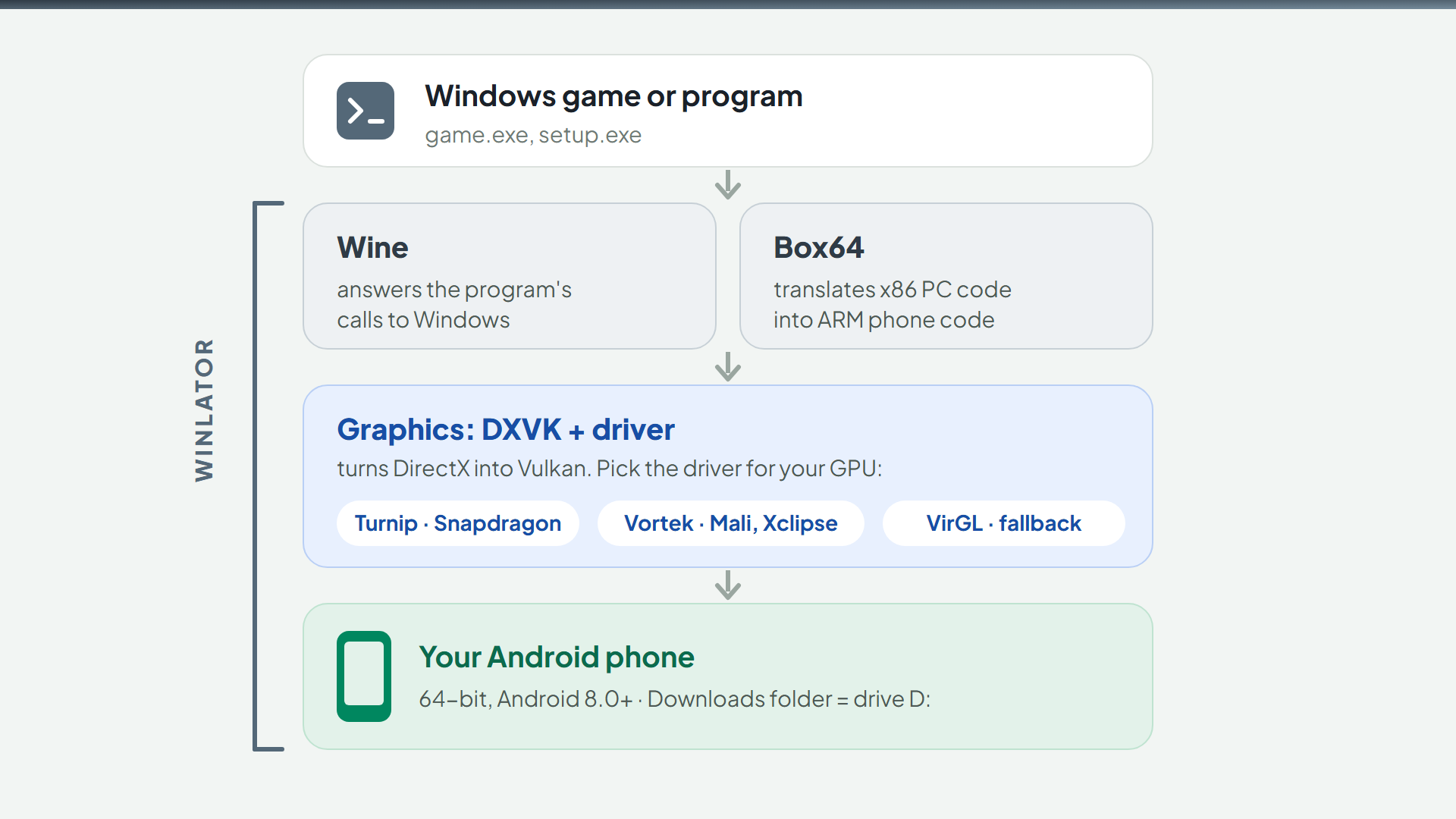
Winlator is a free, open-source Android app that runs Windows programs without installing Windows. It combines Wine, which answers a program’s calls to Windows, with Box64, which translates PC (x86) processor instructions into the ARM instructions phones use, and graphics layers that turn DirectX into Vulkan or OpenGL. The program thinks it is on Windows. It is really on Android.
WinlatorTools · 145.17 MB · 11.0 · APK Download
Will it run on your phone?
| Requirement | Details |
|---|---|
| 64-bit phone, Android 8.0+ | Required |
| Graphics chip | Snapdragon (Adreno) phones work best, using the Turnip driver. Mali and Samsung Xclipse phones use the Vortek driver in recent versions, with more variable results |
| Memory | 6 GB or more for 3D games. 4 GB works for older and lighter programs |
| Storage | About 1 GB for Winlator itself after setup, plus your games |
Expect older and lighter PC games, roughly from before 2015, to run best. Modern AAA games are mostly too heavy for a phone, even a fast one.
Setting up Winlator step by step
- Install the APK and open it onceThe first launch unpacks Winlator’s system files. It takes a few minutes; keep the app open.
- Create a containerTap + on the Containers screen. A container is a self-contained Windows environment with its own settings, so a setting that suits one game does not break another.
- Pick the graphics driverTurnip for Snapdragon, Vortek for Mali and Xclipse, VirGL if neither works. Leave the DirectX wrapper on DXVK.
- Set a screen sizeStart low, such as 800×600 or 1280×720. A lower resolution is the easiest way to gain speed.
- Start the containerA Windows-style desktop opens. Your phone’s Downloads folder appears as drive D:.
- Run the installer or the gameCopy the game or its installer into Downloads, open D: from the desktop and double-tap the .exe. Create a shortcut afterwards so the game starts straight from Winlator’s menu.
Settings that fix most problems
| Symptom | Try |
|---|---|
| Black screen or crash on start | Switch the graphics driver, or switch DXVK to an older version for DirectX 9 games |
| Very low frame rate | Lower the screen size, check the right driver is selected for your GPU, and leave the Box64 preset on its default |
| Controls do not respond | Choose an on-screen control profile in the shortcut settings, or connect a Bluetooth controller |
| Installer stops halfway | Free storage on the phone, and run the installer again from the D: drive |
| Phone gets hot and slows down | Cap the frame rate, lower the resolution, and play out of the case |
Change one setting at a time. With several changes at once, you cannot tell which one helped.
Other ways to use Windows from a phone
| Option | Best for |
|---|---|
| Winlator | Running PC programs and games on the phone itself, offline |
| GameHub | A more guided app for PC games, with a game library and compatibility notes. Needs a newer Android version |
| Remote desktop (AnyDesk) | Using your real Windows PC from the phone, with full speed and every program, as long as the PC is on and online |

There is no Windows 11 APK. For the look, use a launcher. For Windows programs and older PC games on the phone itself, use Winlator with the right graphics driver. For everything else, connect to your own PC remotely.
Frequently asked questions
Is Winlator safe?
Winlator itself is open-source software. The risk is in what you run inside it: Windows malware can still damage files Winlator can reach, so only run programs from sources you trust.
Can Winlator run Windows 11 itself?
No. It runs individual Windows programs, not the Windows operating system. Running full Windows on a phone needs a virtual machine, which is extremely slow, or unlocking the phone and replacing Android, which only a few models support.
Why are my games slow on a Samsung or MediaTek phone?
Winlator’s fastest graphics path is built for Snapdragon GPUs. Mali and Xclipse phones use the Vortek driver, which works with many games but is usually slower. Lower the resolution and try both Vortek and VirGL.
Can I play Steam games with Winlator?
Some DRM-free games and older Steam titles run. Games that require the Steam client or anti-cheat software usually do not.
Is Winlator on Google Play?
No. It is distributed as an APK by its developer, and APKCombo mirrors that APK with its SHA-256 fingerprint.

Reviews and ratings
Your comment was submitted and is awaiting moderation.
Your comment was published.