The rule Android enforces
Android never installs an older version of an app over a newer one. Every APK carries a version number, and the installer refuses anything lower than what is already on the phone, usually with “App not installed” or “conflicts with an existing package”. That rule protects you from being pushed back to a version with known security holes, and it is why a downgrade always involves removing the newer version first.
Removing an app normally deletes its local data. So the real question is not how to install the old version, but how to keep your data on the way. The answer depends on the kind of app.
Pre-installed apps: uninstall updates
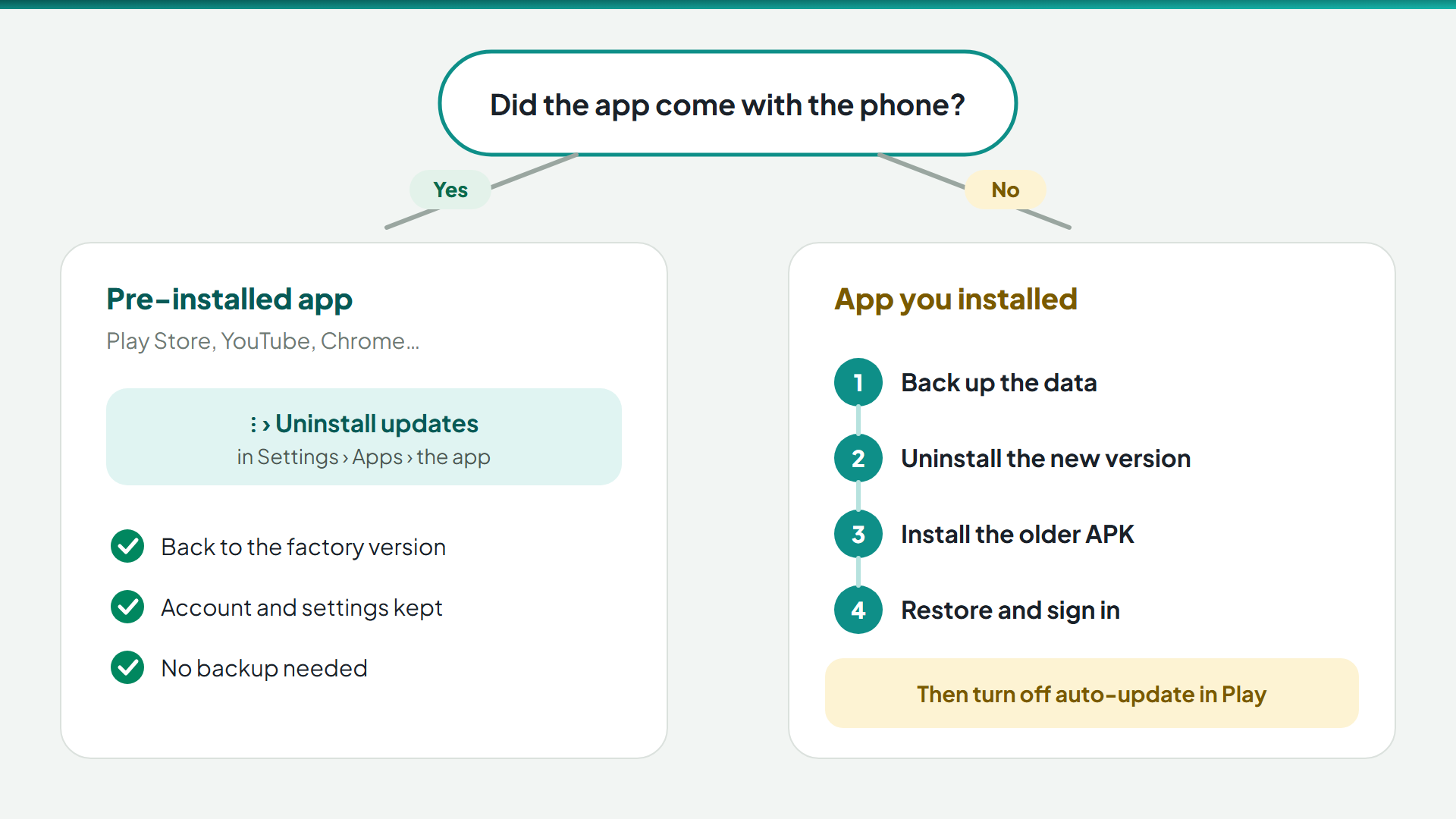
Apps that came with the phone, such as Google Play Store, YouTube, Chrome or the Samsung and Xiaomi system apps, cannot be removed, but their updates can. This returns them to the version the phone shipped with, and keeps your account and settings.
- Open the app’s settingsSettings › Apps, then the app. Turn on “Show system apps” in the menu if it is not listed.
- Uninstall updatesTap the three-dot menu (⋮) and choose “Uninstall updates”, then confirm.
- Optionally install a version in betweenIf the factory version is too old, install the version you want as an APK now. Any version between the factory one and the latest installs as an update.
Apps you installed: back up, uninstall, reinstall
- Back up the dataUse the app’s own backup or account sync: chat backup in messengers, cloud saves in games, sign-in sync in browsers and note apps. If the app has none, its local data will be lost.
- Write down your loginMake sure you can sign in again: password, phone number for a code, or two-step verification method.
- Uninstall the current versionSettings › Apps › the app › Uninstall.
- Install the older versionDownload the version you want, signed by the same developer, and install it. If it comes as an XAPK or APKS bundle, install it with a bundle installer.
- Restore and sign inRestore the backup from inside the app.

Stop it from updating again
Google Play will update the app again the next time it checks, which undoes the downgrade. Turn that off for this one app:
- Open the app’s page in Google PlaySearch for the app and open its page.
- Turn off auto-updateTap the three-dot menu (⋮) at the top right and untick “Enable auto update”.
Other apps keep updating normally. This option does not exist for Google Play Store itself, which always updates itself.
When an older version will not work
| Situation | Why |
|---|---|
| Online games and messengers say “update required” | Their servers accept only recent versions. WhatsApp, banking apps and online games such as Roblox block old versions after a while |
| The app crashes after a downgrade that kept its data | Newer versions often upgrade their saved data in a way older versions cannot read. Clear the app’s data, then restore from the app’s own backup |
| “App not installed” on Android 14 or later | Android 14 refuses apps built for Android 5.1 or older, so very old versions cannot be installed at all |
| “Not compatible” on an old phone | The version you picked needs a newer Android. Use the Android filter on the old versions page |
Our guide to the App not installed error covers every variant of the message.
For advanced users: keeping data with adb
With a computer and USB debugging, Android’s adb tool can uninstall an app while keeping its data, then install the older version on top of it:
adb shell pm uninstall -k --user 0 com.example.app
adb install old-version.apkPre-installed app: uninstall updates. Any other app: back up, uninstall, install the older version, restore, and turn off auto-update for it. Apps that require the latest version cannot be downgraded for long.
Frequently asked questions
Can I downgrade an app without uninstalling it?
Not for normal apps. Android blocks installing a lower version over a higher one. Pre-installed apps are the exception: “Uninstall updates” rolls them back without removing them.
Will I lose my data if I downgrade?
Uninstalling deletes local data. Anything stored in your account or the app’s cloud backup comes back when you sign in and restore.
Is it safe to use an old version?
Older versions miss later security fixes. Use them only when you need to, and update again when the problem that made you downgrade is fixed.
Why does the old version say “update required”?
The app’s servers no longer accept that version. No setting on the phone gets around it; only the newer version will connect.
How do I stop Google Play from updating it again?
Open the app’s page in Google Play, tap the three-dot menu and untick “Enable auto update”.


Reviews and ratings
Your comment was submitted and is awaiting moderation.
Your comment was published.