
What Shizuku does
Some useful things on Android need permissions that normal apps never get: freezing pre-installed apps, installing apps without a prompt for each one, reading the protected Android/data and Android/obb folders, or changing hidden system settings. Traditionally that meant rooting the phone. Shizuku offers a middle way. It runs a small background service with the same rights as Android’s debugging tool (adb), and lets apps you approve use those rights through it.
Shizuku on its own changes nothing. It is a bridge: an app has to support Shizuku, ask for access, and you have to grant it. Nothing on the phone is modified permanently, and the service stops when the phone restarts.
ShizukuTools · 2.48 MB · 13.6.0.r1091.b844bc49 · APK Download
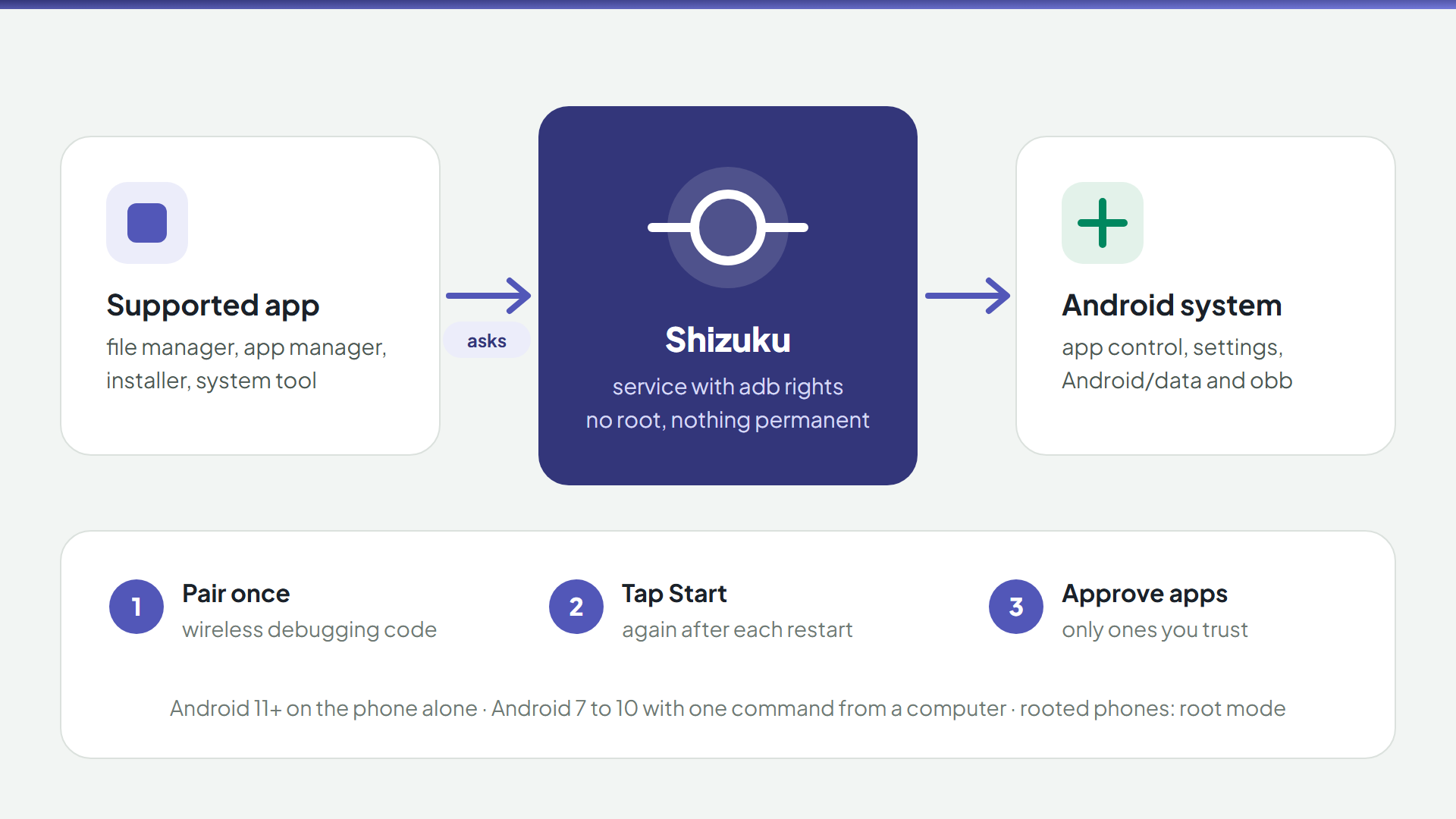
Which way to start it
| Your phone | How Shizuku starts | After a restart |
|---|---|---|
| Android 11 or later, not rooted | Wireless debugging, on the phone alone | Open Shizuku and tap Start again |
| Android 7 to 10, not rooted | One command from a computer over USB | Run the command again |
| Rooted | Root mode | Starts by itself |
Setting it up with wireless debugging (Android 11+)
The phone must be connected to Wi-Fi, because wireless debugging only works on a Wi-Fi network.
- Turn on developer optionsSettings › About phone, then tap Build number seven times. Our guide to developer options shows where it is on each brand.
- Turn on wireless debuggingSettings › System › Developer options › Wireless debugging. Confirm the prompt for your Wi-Fi network.
- Start pairing in ShizukuOpen Shizuku and tap Pairing under “Start via Wireless debugging”. Allow its notification: the pairing code is entered there.
- Get the pairing codeGo back to Wireless debugging and tap “Pair device with pairing code”. A six-digit code appears.
- Enter the code in the notificationPull down the notification shade without closing the code window, and type the code into Shizuku’s notification. Pairing is done once and remembered.
- Tap StartBack in Shizuku, tap Start. After a few seconds it shows that Shizuku is running.
Starting it from a computer (Android 7 to 10)
Older versions of Android have no wireless debugging, so the service is started once over USB. Turn on USB debugging, connect the phone, open Shizuku and choose “Start by connecting to a computer”. The app shows the exact adb command for your phone: run it on the computer, and Shizuku starts. The command differs between versions, so always copy it from the app.
Giving an app access
When an app that supports Shizuku wants to use it, Shizuku shows a permission prompt, just like a normal Android permission. You can allow or deny it, and you can review every app’s access later on Shizuku’s “Authorized applications” screen.
| Kind of app | What Shizuku lets it do |
|---|---|
| App managers | Freeze, hide or disable apps, including some pre-installed ones |
| File managers | Open and copy files in Android/data and Android/obb on Android 11 and later, which helps with game data |
| Installers | Install and update apps without a confirmation prompt for each one |
| System tools | Change hidden settings, grant special permissions, run shell commands |
Copying OBB game data by hand is one of the most common reasons to use it. Our XAPK and OBB guide explains where that data goes.
Is Shizuku safe?
Shizuku is open-source and widely used, and it adds no permanent changes to the phone. The power it hands out is real, though: adb-level rights can uninstall apps, change settings and read data that other apps cannot. Two habits keep it safe.
- Approve only apps you trust. Treat a Shizuku prompt like handing over a key, not like a routine permission.
- Turn off wireless debugging when you are done. Once Shizuku is running it usually keeps going without it, and leaving wireless debugging off on public Wi-Fi is good practice. If an app reports that Shizuku stopped, start it again.
Common problems
| Problem | Fix |
|---|---|
| Notification stuck on “Searching for pairing service” | Allow Shizuku to run in the background and keep the Wireless debugging screen open while pairing |
| Shizuku stopped after a restart | Normal without root. Open Shizuku and tap Start |
| Start fails after a restart | Turn wireless debugging off and on again, then tap Start |
| Wireless debugging turns itself off | Android does this after a while or when Wi-Fi changes. Turn it back on before starting Shizuku |
| An app says Shizuku is not running | Start Shizuku first, then open the app and grant access when asked |
Shizuku gives approved apps adb-level rights without root. Pair once with wireless debugging, tap Start after each restart, approve only apps you trust, and turn wireless debugging off when you finish.
Frequently asked questions
Does Shizuku need root?
No. On Android 11 and later it starts with wireless debugging, and on older versions with one command from a computer. Rooted phones can use root mode, which also starts automatically.
Why do I have to start Shizuku after every restart?
Android ends debugging sessions when the phone restarts, and without root nothing can start them again automatically. Pairing is kept, so starting takes a few seconds.
Does Shizuku drain the battery?
No. The service sits idle until an app uses it.
Can Shizuku damage my phone?
Shizuku makes no permanent changes. An app you approve could still change settings or remove apps, so only grant access to apps you trust.
Will banking apps notice Shizuku?
Some security-sensitive apps check whether developer options or USB debugging are on. If one complains, turn wireless debugging and developer options off while you use it.


Reviews and ratings
Your comment was submitted and is awaiting moderation.
Your comment was published.