App Screenshots

Hands-free device control via spoken commands
We’ve simplified activation! Use the accessibility floating button to toggle Voice Access listening mode on/off. This shortcut can be customized to volume keys, gesture, or navigation bar button. Plus, we've made improvements to multi-window scenarios, only showing labels on the focused app, reducing screen clutter.
For people who experience difficulty manipulating a physical touch screen—whether due to paralysis, tremors, or a temporary injury—handling everyday digital tasks can be a challenge. Voice Access solves this problem by enabling hands-free navigation across your device using spoken instructions. The app captures voice inputs to directly control on-screen elements, navigate through system interfaces, and draft or edit text without physical contact. Because it uses the AccessibilityService API to identify interactive controls on your display and perform actions on your behalf, you can complete complex digital routines entirely by voice.
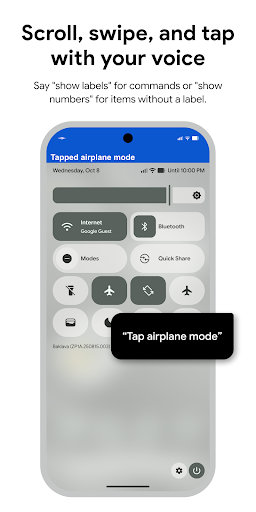
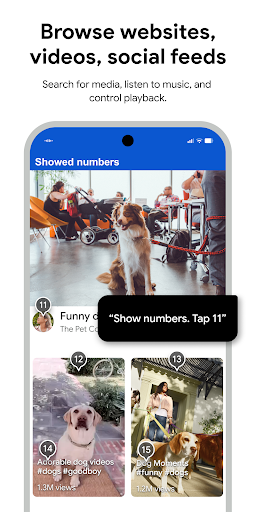
Instead of physically touching the display, you can issue direct commands to control what is on the screen or move between apps. Spoken inputs like go home, go back, or open Gmail handle basic interface navigation, while actions such as tap next or scroll down allow you to interact with specific items in real time.
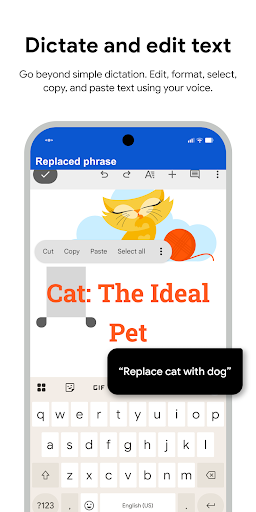
If you are typing a message or updating a document, dedicated commands let you dictate words or edit existing phrasing, such as saying type hello or replacing specific words with commands like replace coffee with tea. If you ever forget how to perform an action, saying Help brings up a short list of available voice inputs, and a built-in tutorial walks through common tasks like starting a session, tapping, scrolling, and editing text.
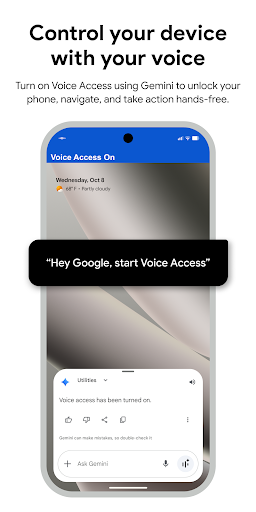
You can start a session using a few different methods depending on your setup. If you have Hey Google detection enabled, saying Hey Google, Voice Access launches the listener automatically. Alternatively, you can initiate voice control manually by tapping the persistent notification or the blue screen button.
Once active, the app actively monitors for voice inputs to operate the display. To temporarily pause active listening without closing the tool, you can simply say stop listening. If you want to disable the feature completely, you must navigate to your device’s Accessibility settings and toggle the switch off.
Your comment was submitted and is awaiting moderation.
Your comment was published.